
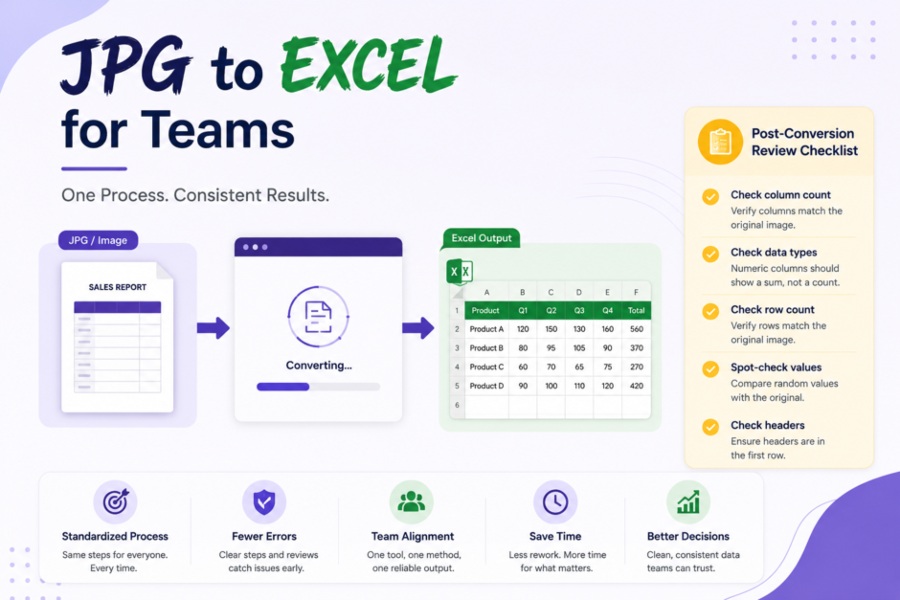
JPG to Excel conversion is simple when one person does it once. It gets complicated when five people do it differently every day. One person photographs documents at an angle. Another uploads low-resolution scans. A third uses a different tool that outputs inconsistent formatting. The data lands in the same spreadsheet but looks different every time.
The problem is not the tool. It is the lack of a shared process. This article covers how to build one.
Why does JPG to Excel conversion break down in team settings?
When individuals convert files without a shared standard, three problems appear consistently.
Input quality varies. One team member uses a flatbed scanner. Someone else snaps a quick photo with their phone in a dim room. The conversion tool receives different quality inputs and produces different quality outputs. The person cleaning up the data never knows what to expect.
Tool choices differ. Different tools produce different output structures. One tool preserves column formatting. Another collapses borders. A third outputs CSV instead of XLSX. When multiple tools feed into the same workflow, the output is inconsistent by design.
Post-conversion review is skipped. Individuals assume the tool got it right. Nobody checks. Errors move downstream into reports, calculations, and decisions before anyone catches them.
A shared process fixes all three.
What should a team standard for image capture look like?
Nothing affects conversion accuracy more than image quality. Standardizing how team members capture images removes most of the inconsistency before conversion even starts.
Set one capture method for the whole team. A flatbed scanner at 300 DPI produces the most consistent input. If team members are capturing documents in the field, set a standard app—a document scanner app straightens perspective and boosts contrast automatically. Both methods are reliable. Mixing them is not.
Set rules for lighting and angle. Overhead, even lighting. No shadows across the table. Shoot from directly above. Any angle distorts the output. These three rules alone eliminate the most common causes of poor conversion output.
Set a file format standard. Save all images as PNG before uploading. PNG is lossless — it does not degrade with repeated saving the way JPG does. Cleaner input means cleaner output across the whole team.
How should a team choose one conversion tool?
Picking one tool for the whole team removes output inconsistency immediately. The right tool checks four boxes.
Does it handle the document types your team actually works with? Test it on your most complex document — the one with the most irregular layout, the most columns, or the most degraded print quality. If it works on the hard ones, the easy ones take care of themselves.
Does it output XLSX by default? Formatting, formulas, and multiple sheets all survive in XLSX. A tool that defaults to CSV or plain text creates extra work for whoever processes the output.
Does it work without account creation or conversion limits? A tool that requires login or caps daily conversions creates friction. Team members work around friction—they use a different tool, which breaks the standard.
Does it work on every device your team uses? A browser-based tool works on Windows, Mac, and mobile without installation. Desktop software requires installation on every machine. For teams with mixed devices, browser-based is the practical choice.
WPS’s online converter meets all four criteria. Teams can convert JPG to Excel directly in the browser—no account, no cap, and XLSX output by default—on any device.
What should the post-conversion review checklist include?
Every converted file should go through the same review before it moves anywhere else. A checklist takes two minutes and catches errors before they become problems.
Check column count. Count the columns in the original image. Count the columns in the spreadsheet. A mismatch means data was lost or merged during conversion.
Check data types. Select each numeric column. The status bar should show a sum. If it shows a count, the column contains text-formatted numbers. Fix before the file moves on.
Check row count. Count the data rows in the original image. Compare to the spreadsheet. Missing rows mean the tool missed content—usually due to low contrast or a table boundary error.
Spot-check values. Pick five random cells and compare them to the original image. One wrong character in a number looks fine until a formula fails.
Check headers. Column headers should be in row one, not row two or three. A misplaced header breaks any formula or lookup that references it by position.
How should a team handle exceptions?
Not every document converts cleanly. Define what happens when a conversion fails before it happens.
Define the threshold in advance. If more than ten percent of values require manual correction, the conversion is not worth using. Flag the file and process it manually from the start. It sounds backwards, but it is faster. Fixing a bad conversion takes longer than typing a short document from scratch
Assign one person to handle exceptions. When everyone handles their own exceptions differently, the exception handling becomes another source of inconsistency. One person, one method, consistent output.
Keep a log of documents that fail consistently. If the same document type fails every time, the capture method or the tool is wrong for that type. A log makes this pattern visible. Without it, the same problem gets solved individually every time it appears.
How do you roll out a team standard without friction?
A new process only works if the team uses it. Three things make adoption easier.
Document it in one place. A single shared document with the capture rules, the tool link, and the review checklist. No training session needed — one reference document covers it.
Start with one document type. Do not change everything at once. Pick the document type the team converts most often — invoices, field reports, attendance sheets — and apply the standard there first. Expand once the process is working.
Make the tool easier to access than alternatives. Pin the JPG to Excel converter link in the team’s shared channel or bookmark bar. The easier the standard tool is to reach, the less likely team members are to use something else.
Conclusion
A consistent JPG to Excel process is not complicated to build. Standardize image capture. Pick one tool. Run the same post-conversion checklist every time. Handle exceptions with a clear rule.
Each step is simple. Together they eliminate the inconsistency that makes team-based conversion unreliable.
FAQ’s
Why does JPG to Excel output look different when different team members do the conversion?
Different capture methods and different tools produce different outputs. Standardizing both—one capture method and one conversion tool across the whole team—removes most of the inconsistency without changing anyone’s workload significantly.
What is the best image format for a team JPG to Excel workflow?
PNG produces the most consistent input for OCR tools. It is lossless and does not degrade with repeated saving. Set PNG as the team standard for all images before conversion, even if the original was captured as JPG.
What is the fastest way to spot errors in a converted Excel file across a team?
Use a five-point checklist: column count, data types, row count, spot-check of random values, and header placement. The checklist takes two minutes per file and catches the errors that cause problems downstream before the file moves anywhere else.
What should a team do when a JPG to Excel conversion fails or produces unreliable output?
Set a threshold in advance — if more than ten percent of values need manual correction, process the file manually from the start. Assign one person to handle all exceptions and keep a log of document types that fail consistently. Patterns in the log point to the right fix.
How do you get a team to follow a new JPG to Excel conversion standard?
Document the process in one shared place. One document type first. Expand from there. Make the standard tool easier to access than any alternative. Adoption follows the path of least resistance—remove friction from the standard process and most team members will follow it naturally.