
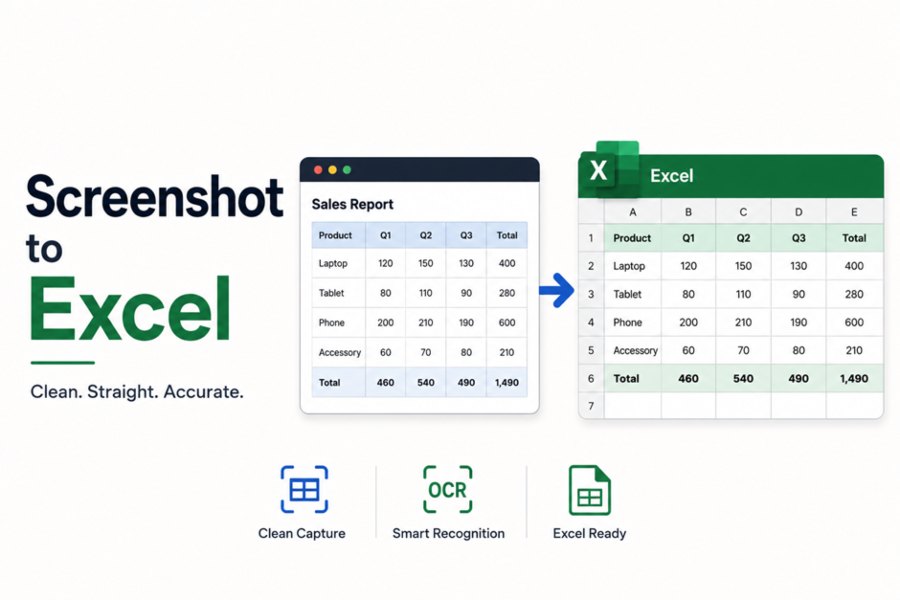
Of all the image types you can convert to Excel, screenshots give you the cleanest results. Most guides group screenshots with photos and scans. That is a mistake. Screenshots behave differently in conversion, and understanding why changes how quickly and cleanly the result comes out.
No camera angle to worry about. No shadows. No perspective distortion. Every character was placed by software at a fixed size with consistent contrast. That combination makes screenshots the most reliable input any OCR engine can work with.
Why do screenshots produce better image to Excel results than photos?
Screenshots produce better results because the input is already digital. No camera, no lighting issues, no paper texture. Just clean digital text.
Photographing a table means the OCR engine inherits every problem the camera introduced. Bad angle. Uneven light. Soft focus. A screenshot arrives with none of those problems attached. The text is crisp, the layout is intact, and the converter gets straight to work.
What makes a conversion useful is not just reading characters, it is knowing where they belong. Screenshots make that job easier. The rows are already straight, the columns are already defined, and the image to Excel converter does not have to reconstruct anything.
What kinds of screenshots convert well to Excel?
Five types of screenshots convert most reliably to Excel: website tables, dashboard reports, spreadsheet screenshots, PDF screenshots, and presentation slides.
- Tables from websites: HTML-rendered text with clear column structure. Near-perfect conversion on any capable tool.
- Dashboard and report screenshots: Software dashboards with data panels and summary rows. Clean digital rendering produces clean output.
- Spreadsheet screenshots: A screenshot of an existing Excel or Google Sheets table. Gridlines are sharp, and column alignment is exact.
- PDF screenshots: PDF text is vector rendered and stays sharp even at lower resolutions.
- Presentation slide screenshots: Tables in PowerPoint or Google Slides convert reliably when the font is standard and the background is solid.
These need more attention:
- App screenshots with compressed images: Chat apps heavily compress screenshots. Characters blur at the edges, and decimal points can disappear.
- Dark mode screenshots: Low contrast between light text and a dark background reduces accuracy. Convert to standard contrast before uploading.
- Screenshots of very small text: Zoom in before taking a screenshot. More pixels per character means better recognition.
How do you take a screenshot that converts well to Excel?
Three things determine screenshot quality for conversion: tight cropping, full-resolution capture, and PNG format.
Cut everything outside the table before uploading. Menus, headers, footers, and anything decorative sitting around the data pulls the OCR engine’s attention away from what matters. A clean crop keeps the focus on the table.
Capture at full resolution. Do not resize or compress the screenshot before uploading. Every pixel lost is a detail the OCR engine cannot recover. On Windows, use Snipping Tool and save as PNG. On Mac, use Command + Shift + 4. PNG keeps every pixel intact. JPG compresses and loses detail.
Avoid scaling. If the page is zoomed out to fit more content on screen, zoom in before screenshotting. More pixels per character means better recognition.
How do you convert a screenshot to Excel step by step?
Converting a screenshot to Excel takes five steps: crop, open the converter, upload, process, and download.
1. Trim the screenshot to the table area using any basic image editor or the built-in crop tool.
2. Open the convert image to Excel tool in your browser. Nothing to sign up for. Nothing to download.
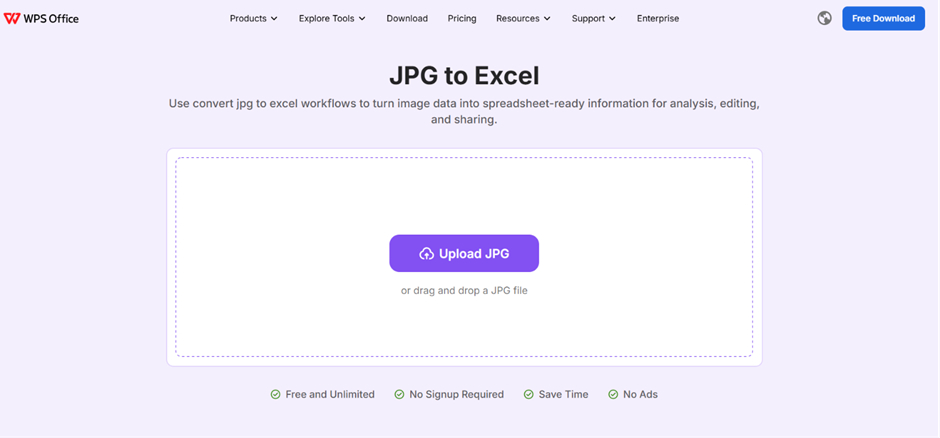
3. Upload the PNG by clicking to browse or dragging the file in.
4. The tool scans the image, detects the table structure, and extracts the data into cells.
5. Download the XLSX file. The data lands in proper cells, ready to sort, filter, and calculate.
For the fastest workflow, copy the screenshot to your clipboard using Win + Shift + S on Windows or Command + Control + Shift + 4 on Mac. Paste directly into the converter upload area. No file saving needed. The conversion runs immediately.
What should you check after converting a screenshot to Excel?
Three things to check after converting a screenshot to Excel: numbers formatted as text, column header placement, and special characters.
- Numbers formatted as text: Select the column and check the status bar. “Sum” means numbers. “Count” means “text.” Fix it with Convert to Number.
- Column header placement: Confirm headers landed in row one. A merged header sometimes splits or shifts to row two during extraction.
- Special characters: Currency symbols, percentage signs, and superscripts sometimes drop or convert incorrectly. Spot-check columns containing these against the original screenshot.
Most clean screenshots need under a minute of review.
What are the most common mistakes when converting screenshots to Excel?
Three mistakes are consistently associated with screenshot conversions.
Using a compressed copy instead of the original. Every time a screenshot moves through a chat app, email, or social platform, the file gets squeezed. Detail is lost in that process, and the OCR engine works with less to read. Go back to the original file before uploading.
Ignoring font type. Standard system fonts convert reliably. Decorative or stylized fonts introduce ambiguity. OCR engines guess at unusual characters and sometimes guess wrong. If the screenshot uses non-standard fonts, plan for more post-conversion corrections.
Not adjusting low contrast screenshots. A dark mode interface with light text on a dark background reduces accuracy significantly. Converting the screenshot to dark text on a white background before uploading produces better results.
When does a screenshot conversion fail?
Screenshot conversions fail for three reasons: heavy image compression, unusual fonts, and low contrast between text and background.
Heavy compression is the most common. Files that pass through messaging apps lose character edge definition. The converter misreads blurred characters and merges values that should be separate.
Unusual fonts cause occasional misreads. The fix is straightforward — if a screenshot uses decorative or non-standard fonts, expect more corrections in the output and plan a closer review.
Low contrast is the third cause. Dark backgrounds with light text reduce the signal that the OCR engine works with. Adjust contrast before uploading whenever the original screenshot has an inverted or dark color scheme.
Conclusion
For image to Excel conversion, screenshots give you a head start that no other image type can match.
Trim the screenshot to the table. Capture at full resolution. Save as PNG. Upload and convert. The output is a working spreadsheet in under a minute with minimal cleanup needed.
FAQ’s
Why do screenshots convert to Excel more accurately than photos?
Screenshots are rendered digitally at screen resolution with perfect contrast and no camera distortion. Every character is pixel-perfect. Photos introduce angle, lighting, and focus variables that reduce OCR accuracy. Screenshots eliminate all of those variables before conversion starts.
What is the best format to save a screenshot for image to Excel conversion?
PNG is the best format. It is lossless and preserves every pixel without compression. JPG compresses and loses detail at character edges. Always save screenshots as PNGs before uploading.
Can I convert a screenshot of a website table to Excel?
Yes. Website tables rendered in HTML convert with near-perfect accuracy. The text is sharp, the column structure is clear, and there is no physical capture involved. Trim the screenshot to the table area before uploading for the cleanest output.
How do I convert a screenshot to Excel without saving a file?
Copy the screenshot to your clipboard using your keyboard shortcut. Open the image to Excel converter in your browser and paste the clipboard image into the upload area. The conversion runs without saving a file first.
What causes errors when converting a screenshot to Excel?
Three main causes: heavy compression from passing through chat apps or email, unusual or decorative fonts that OCR engines misread, and low contrast between text and background. Work from the original screenshot file and avoid dark mode interfaces, and the error rate drops significantly.