
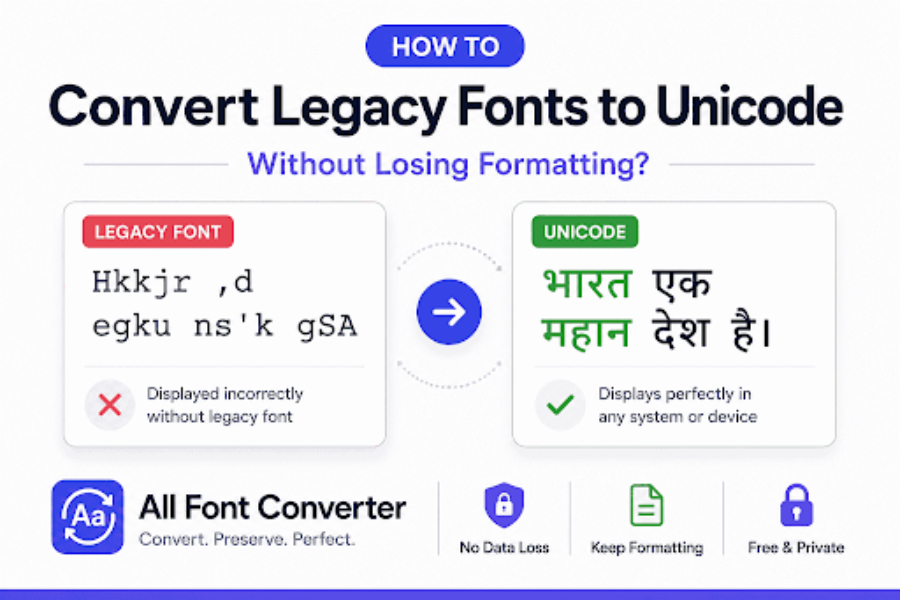
Converting legacy fonts to Unicode fixes display problems. But it also introduces a new risk: broken formatting. Bold text turns regular. Headers lose their size. Spacing shifts. Special characters land in the wrong place.
This happens because most converters only look at characters, not the styling wrapped around them. The fix is to treat formatting as a separate concern from character conversion, not an afterthought.
What Does “Losing Formatting” Actually Mean?
It means the visual structure of your document changes after conversion, even though the text itself converts correctly.
This shows up in 4 common ways:
| Formatting Element | What Breaks |
| Font styles | Bold, italic, or underline gets stripped |
| Paragraph structure | Headings collapse into plain paragraphs |
| Spacing | Line breaks, indents, and tables shift |
| Special Characters | Numbers, punctuation, or symbols land in the wrong positions |
Documents with tables, bullet points, or mixed formatting (like legal papers, resumes, or reports) are the most exposed to these errors, since they depend on structure as much as text.
Step 1: Back Up the Original File
Before converting anything, save a copy of the original file. Legacy font conversion is not always reversible, especially once formatting shifts during the process. A backup gives you a fallback if the converted version needs redoing.
Step 2: Convert Text and Formatting Separately
Most conversion errors happen because tools flatten the entire document into plain text first, then convert it. This strips formatting before conversion even starts.
Instead, work with a converter that processes text inside its existing structure. That means:
- Word documents stay in .docx format during conversion, not exported to .txt first
- Tables remain intact, with each cell converted individually
- Bullet points and numbered lists retain their structure
Step 3: Use a Converter Built for Formatted Documents
Not all font converters handle Word or HTML formatting. Some are built only for plain text, which forces you to manually reapply every style afterward.
Tools like All font converter are built to handle Hindi font conversion alongside formatted documents. A converter designed this way keeps 3 things intact during conversion:
- Font styles (bold, italic, underline)
- Paragraph and heading structure
- Tables, lists, and indentation
This step alone prevents most of the formatting loss that happens with basic text-only converters.
Step 4: Verify Styles After Conversion
Even with a formatting-aware converter, always check the output. Open the converted file and confirm these 3 things:
- Headings still display at their original size and weight
- Bold and italic text is still bold and italic
- Paragraph spacing matches the original document
Skipping this step is the most common reason formatting errors go unnoticed until the document is already shared or published.
Step 5: Check Special Characters and Punctuation
Legacy Hindi fonts often map punctuation and numbers differently than Unicode does. After conversion, check these 3 elements specifically:
- Numbers (Hindi numerals vs. Latin numerals)
- Punctuation marks, especially the danda (।) used in Hindi sentences
- Symbols like nukta-based characters (क़, ज़, फ़)
A single misplaced character in a legal or academic document can change its meaning, so this check matters more than it might seem.
Conclusion
Losing formatting during font conversion is not a random glitch. It happens because most tools separate text from structure by default. Backing up the file, using a formatting-aware converter, and verifying the output at each step prevents the most common failures.
Converting legacy fonts to Unicode does not have to mean starting the formatting over from scratch. Done correctly, the document keeps its original structure, and its text becomes readable everywhere.
Frequently Asked Questions
What causes formatting loss during font conversion?
Converters that flatten documents to plain text before converting strip out styles, headings, and spacing in the process.
Can Word formatting survive a Krutidev to Unicode conversion?
Yes, if the converter processes the .docx file directly instead of exporting it to plain text first.
What should you check first after converting a document?
Headings, bold or italic text, and paragraph spacing, since these are the most common elements that shift during conversion.
Do tables and bullet points need special handling?
Yes. Each table cell and list item needs to convert individually to keep its original structure intact.